Choosing Your Cash Drawer Type
Where this lives: Dashboard > TORO Configuration > Set Up System > Store tab > Set Up Station Information
This is not on the "Set Up Cash Drawer" screen. That screen controls how TORO counts your cash. This one tells TORO how to physically open the drawer.
Before TORO can pop your cash drawer open, it has to know what kind of drawer you have and how it's wired to the computer. You tell it once, per register, and then forget about it.
Almost every store lands on one of two answers, so if you're in a hurry: if your drawer's cable plugs into the back of your receipt printer, choose "TRIGGERED BY RECEIPT PRINTER (NO PRINT)." If it plugs straight into the computer with a USB cable, choose "APG USB 554 HID DEVICE v5." The rest of this article explains why, and what to do when it doesn't work.
If you pick the wrong one, nothing breaks. Come back to this screen and change it.
Do This At The Register Itself
The drawer type is stored per station. The setting you're changing applies only to the computer you're sitting at.
If you have three registers, each one has its own drawer type, and you set each one from that register. Changing it on the front counter does nothing for the back counter.
Finding the Setting
From the main screen, tap Dashboard
Click the TORO Configuration tab on the left, then click the Set Up System card. (Can't find it? Type "setup" in the search box at the top right.)
Click the Store tab on the left side of that window
Click Set Up Station Information
Find the row labeled Cash Drawer and open the dropdown
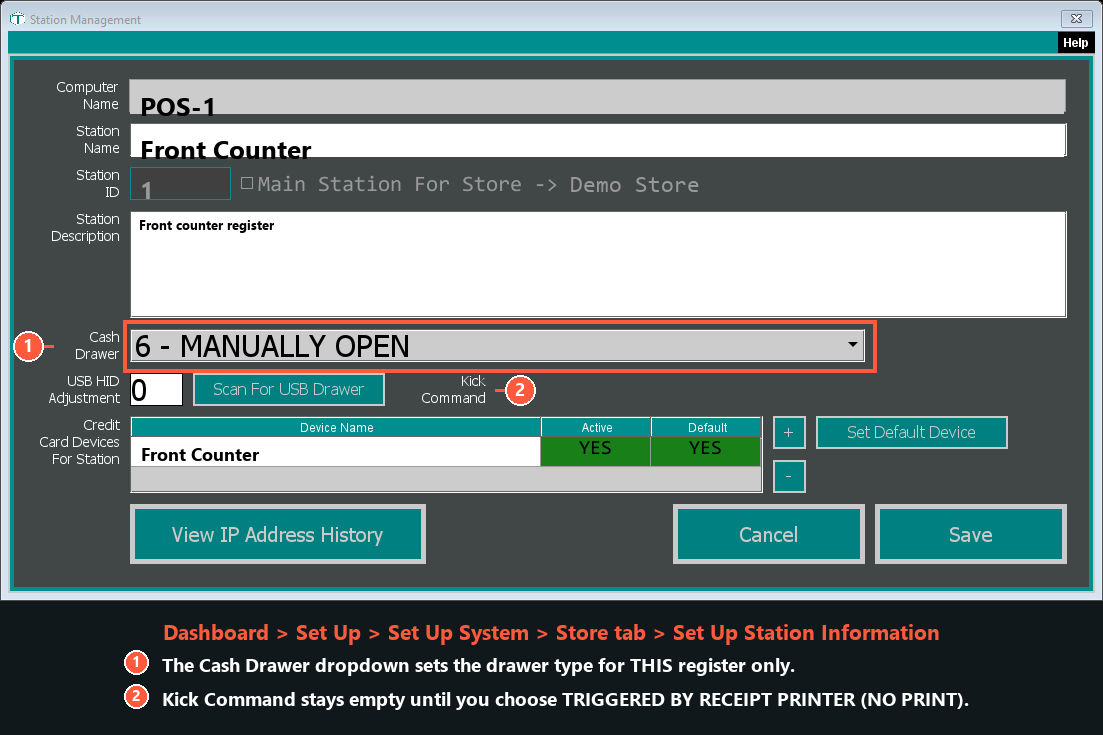
- Pick your drawer type (see below), then click Save
TORO will tell you: "Must restart TORO to pickup any changes." Close TORO and open it again so the new drawer setting takes hold.
Ignore the numbers in the list. The dropdown shows a number before each option — "6 - MANUALLY OPEN," "9 - TRIGGERED BY RECEIPT PRINTER (NO PRINT)," and so on. Those numbers are only there to keep the list in order, and they do not match anything else in TORO or in any support article. Always go by the name, never the number. If you're on the phone with support, read us the words.
Which One Do I Pick?
Your drawer plugs into the receipt printer
This is the most common setup in a cigar shop. The drawer has a cable — it looks like a fat telephone cord — running into a port on the back of your receipt printer. The printer, not the computer, is what pops the drawer.
Choose TRIGGERED BY RECEIPT PRINTER (NO PRINT).
There is a second, older option in the list called simply TRIGGERED BY RECEIPT PRINTER, without the "(NO PRINT)". Both open the drawer. The difference is that the old one opens the drawer by printing a little slip of paper every single time. Over a busy Saturday that's a lot of wasted receipt paper in the bin. The "(NO PRINT)" version sends the printer a silent command instead, and nothing prints.
Pick "(NO PRINT)" unless support has specifically told you otherwise.
This option requires that a receipt printer is already set up for this register. If it isn't, TORO will offer to set one up for you when the drawer fails to open.
Your drawer plugs into the computer with a USB cable
If the drawer's cable goes directly into a USB port on the computer, you have an APG USB drawer.
Choose APG USB 554 HID DEVICE v5. This is the newest and most reliable version, and it is the one you want on any drawer bought in the last several years. (Don't worry about what "HID" means — it's just part of the official name. Read it exactly as shown if you're on the phone with us.)
You may see older entries in the list — v1, v2, v3, v4. Those exist only so that stores that were set up years ago keep working after an update. Do not choose them for a new setup. v5 is the one that knows how to recover on its own when the drawer stops responding (see "When the drawer stops opening" below).
The first time TORO runs with v5 selected, Windows may ask for permission with a security prompt. Click Yes. TORO is setting up its ability to reset a stuck drawer without making you reboot. You'll only be asked once.
Neither one matches what you see
If the cable doesn't obviously go into the printer or into a USB port on the computer — some older drawers use a wide serial plug, and some all-in-one registers hide the cable inside the stand — don't guess. Call support, describe the cable and where it goes, and we'll tell you which option to choose.
Testing It
After you pick a type and save, use the Test Open Drawer button next to the dropdown. TORO will try to open the drawer right there, and it flashes the button red if it couldn't.
Usually a message appears alongside the red button explaining what went wrong — read that message, and look it up in Troubleshooting below. If the button just turns red with no message at all, check that the drawer's cable is pushed all the way in at both ends, then call support and tell us "the test button turned red with no message." That tells us exactly where to start.
If you chose a printer-triggered type and there's no receipt printer configured yet, TORO will notice and ask, "The receipt printer for this station is not setup. Would you like to set it up?" Say yes and follow the printer setup.
Note: The Test Open Drawer button does not appear when APG USB 554 HID DEVICE v5 is selected. To test that one, save the setting and ring up a cash sale — or just wait for the drawer to open on your next transaction. We're aware this is inconvenient and it's on our list.
The Drawer Kick Command
When — and only when — you choose TRIGGERED BY RECEIPT PRINTER (NO PRINT), a second dropdown named Kick Command appears beside the drawer type.
This is the exact signal TORO sends down the wire to tell the printer "pop the drawer." Different printer brands listen for different signals.
Leave it on "Auto (try all)." In Auto, TORO sends every known signal in turn, a split second apart, and whichever one your printer understands is the one that opens the drawer. The whole thing takes about a third of a second and works on essentially every printer we've seen.
The only reason to pick a specific command is if the Auto setting makes your printer do something strange — some printers beep, or feed a little paper, when they receive a signal they don't recognize. In that case, work down this list until the drawer opens cleanly:
| Kick Command | Try it when |
|---|---|
| Auto (try all) | Always start here. |
| ESC p pin2 (standard) | The standard signal. Most printers, most drawers. |
| ESC p pin1 (alternate) | Your drawer is wired to the printer's second drawer port. |
| BEL (Star specific) | Star printers. |
| ESC BEL (Star variant) | Star printers that ignore plain BEL. |
| DLE DC4 | Some Epson and Star models. |
| GS ( A | Other Epson and Star models. |
Picking one specific command is also slightly faster than Auto, since TORO sends one signal instead of six.
Not sure? Don't work down the list on your own. Call support with your printer's brand and model and we'll tell you which row to pick. If you've already changed it and things got worse, set it back to Auto (try all) — that undoes it.
USB HID Adjustment and "Scan For USB Drawer"
These two controls sit next to the drawer type, and you should never need to touch them unless support walks you through it. Leave the adjustment at 0 until someone tells you otherwise.
The adjustment is a small number that tells TORO which internal address the drawer answers on. It matters for APG USB drawers. If the drawer opens fine but TORO never notices when you close it, that number is wrong — and on v5 TORO works out the correct value for you and records it in its log, so support can simply read it out and tell you what to type.
Scan For USB Drawer hunts for the right value on the older v1 and v2 drawers by trying each one in turn and opening the drawer until it works. When it succeeds, it tells you which number worked.
Changing the number takes effect right away on v1 and v2. On the newer drawers, save and restart TORO.
When the Drawer Stops Opening
TORO will never block a sale because the drawer is stuck. If it can't reach the drawer, you keep ringing up customers and the drawer simply doesn't pop. Open it by hand and carry on.
On APG USB 554 HID DEVICE v5, TORO tries to fix a stuck drawer by itself, in stages, without you doing anything:
- It quietly reconnects to the drawer in the background.
- If that doesn't take, it asks Windows to switch the USB port off and back on — the software equivalent of unplugging the drawer and plugging it back in. While this happens you'll see a message: "Reconnecting cash drawer — Trying to recover it automatically — this can take up to 30 seconds. You can keep selling."
- If it recovers, you'll see "Cash drawer reconnected — Automatic drawer open is working again." and the drawer starts popping on its own again.
- If it can't recover, you'll see "Cash drawer disconnected — Open it by hand for now. Rebooting the computer usually fixes it. Call support if it keeps happening."
That last message means what it says. Reboot the computer when you get a quiet moment; that clears it the overwhelming majority of the time. If it comes back day after day, the drawer or its cable is failing — call support.
TORO also gives up gracefully at startup: if the drawer doesn't answer within 15 seconds of TORO opening, it stops waiting, switches that register to manual-open for the session, and lets you start selling.
Troubleshooting
Find the message you're seeing on screen and read across. (For the automatic-recovery messages — "Reconnecting cash drawer," "Cash drawer reconnected," "Cash drawer disconnected" — see When the Drawer Stops Opening just above.)
"Your Cash Drawer is set to be triggered by Receipt Printer (No Print). There is no receipt printer configured for this station. Unable to open Cash Drawer." You picked a printer-triggered drawer type, but this register has no receipt printer assigned. Go to Dashboard > TORO Configuration > Set Up System > Printers tab > Set Up Printer and assign the receipt printer, then try again.
"No receipt printer is configured for this station." Same cause as above.
**"Unable to locate printer: (name)"** TORO knows the printer's name but Windows can't find a printer by that exact name anymore. This usually means the printer was renamed, removed, or reinstalled in Windows. Re-run the printer setup and pick it from the list again. The name has to match exactly, including spaces and capitalization.
**"Failed to open cash drawer: (message)"** Windows accepted the printer but refused the job. Check that the printer is powered on, has paper, and isn't showing an error light. If the printer prints receipts normally but the drawer never opens, the drawer cable or the Kick Command is the problem — set Kick Command to Auto (try all) and test again.
"No cash drawer at this station." This register's drawer type is set to NONE. If it should have a drawer, pick the right type and save.
The drawer opens but TORO doesn't know when I close it. On an APG USB drawer, this is the USB HID Adjustment being wrong. On v1 or v2, click Scan For USB Drawer and let TORO find the right value. On v5, call support — TORO has already worked out the correct number and written it to its log, so we can just tell you what to enter.
The drawer opens on cash but not on a credit card sale. That's on purpose. TORO pops the drawer for cash, employee comp, and store comp — not for card payments, where no change is being made.
Every Drawer Type, For Reference
Most stores need only the two above. The full list, in the order it appears in the dropdown:
| Name in the dropdown | What it means |
|---|---|
| NONE | No drawer at this register. TORO never tries to open anything. |
| USE DRAWER AT ANOTHER MACHINE | This register shares the drawer at a different register. Instead of opening anything, TORO tells the cashier how much cash to put in the other station's drawer. |
| TRIGGERED BY RECEIPT PRINTER | Opens the drawer by printing a slip of paper. Superseded by the (NO PRINT) version. |
| APG USB 554A HID DEVICE v1 | Old APG USB drawer. Existing stores only. |
| MANUALLY OPEN <DEPRECATED...> | Retired. Behaves as Manually Open. Don't choose it. |
| MANUALLY OPEN | TORO tracks the cash but never opens the drawer; staff open it by hand. |
| APG USB 554A HID DEVICE v2 | Old APG USB drawer. Existing stores only. |
| APG USB 554A HID DEVICE v3 | Old APG USB drawer. Existing stores only. |
| TRIGGERED BY RECEIPT PRINTER (NO PRINT) | Recommended when the drawer plugs into the receipt printer. |
| APG USB 554 HID DEVICE v4 | Older APG USB drawer. Existing stores only. |
| APG USB 554 HID DEVICE v5 | Recommended when the drawer plugs into the computer by USB. |
NONE and USE DRAWER AT ANOTHER MACHINE behave differently from the rest in one important way: TORO treats the drawer at that register as permanently open, so the Open/Close Drawer menu is switched off there and reads [NO CASH DRAWER].