Setting up TORO to Mailchimp Integration
Follow these steps to connect TORO to Mailchimp so new customer emails import automatically.
1
Steps to create your API Key
- Log in to Mailchimp:
- Go to mailchimp.com and sign in to your account.
- Navigate to API Keys:
- Click your profile icon (top-right corner) or your account name.
- Select Profile from the dropdown.
- In the menu, go to Extras > API Keys.
- Create or Copy an API Key:
- Click Create A Key.
- Use “TORO” as the label for the key to identify its purpose.
- Once created, copy the API key by pressing CTRL + C (e.g., 0123456789abcdef0123456789abcde-us6).
2
Input API key into TORO
- Go to TORO.
- Select the Admin menu and then Dashboard.
- Open the Modules & Integrations tab.
- Click the Mailchimp tile.
- Click “Set API Key”, paste the API key by pressing CTRL + V, then click Save.
3
Steps to Find Your Audience ID
Log in to Mailchimp:
- Go to mailchimp.com and sign in to your account.
Go to Audience Settings
Use any one of the methods below.
Method One
- Click this link once signed in: https://us10.admin.mailchimp.com/audience/settings/
Method Two
- From the left-hand menu, click Audience.
- On the right towards the top, click on the “…” button.
- Select Audience Settings.
Method Three
- From the left-hand menu, click Audience.
- Click Audience dashboard.
- On the far right, click in the dropdown that says “Manage Audience”.
- Click View Audiences.
- Click the Manage Audience dropdown (far right).
- Select Audience Settings.
Find the Audience ID:
- In the Audience name and defaults section, look for the Audience ID. It’s typically displayed as a unique string (e.g., a1b2c3d4e5).
- Copy this ID by pressing the double square icon or highlighting and pressing CTRL + C.
4
Input Audience Id into TORO
- Go to TORO.
- Select the Admin menu and then Dashboard.
- Open the Modules & Integrations tab.
- Click the Mailchimp tile.
- Next to the Audience table, click the “+” button.
- Give the Audience a name. Recommend to match the name in Mailchimp.
- Click the “Paste from Mailchimp”button next to the Audience Id field. If that doesn’t work, then go back and copy the Audience Id again and paste to its field by pressing CTRL + V.
- Select MASTER for the type.
- Click Save.
Congrats!
Now as you add new emails they will automatically be imported to your Mailchimp list!
Transfer additional customer data
You can also transfer over the first name, last name, birthday, phone number, zip code and the discount level (as a tag). To do this, you must setup Mailchimp to receive this data. Three quick steps…
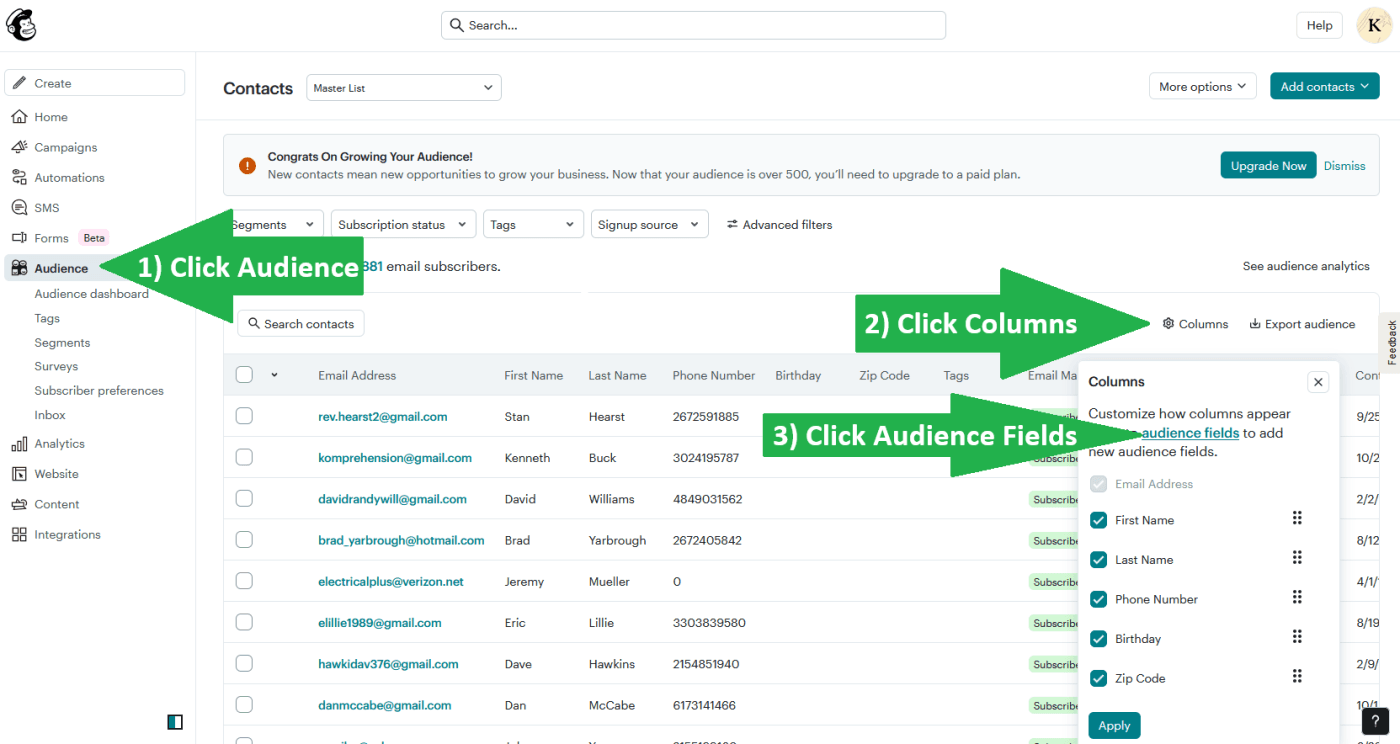
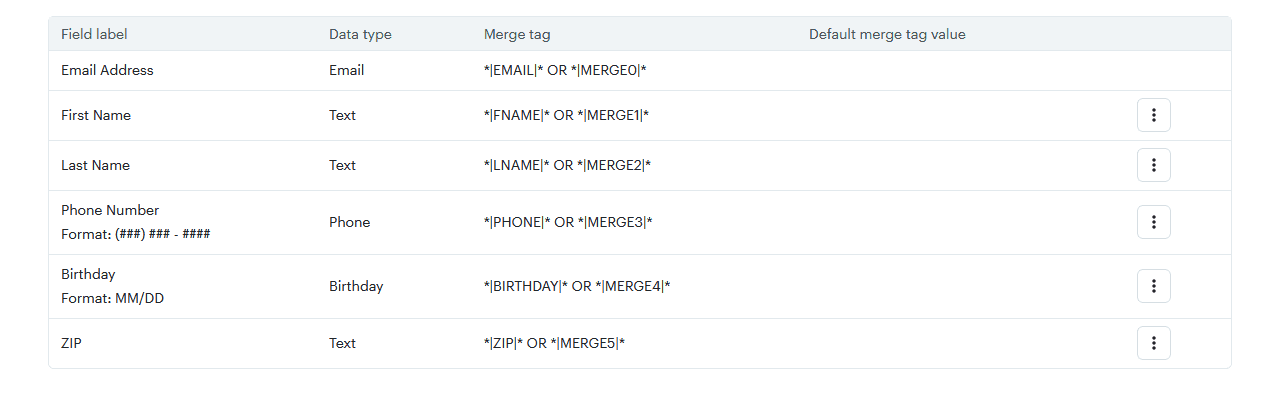
Make the fields look EXACTLY like this.
Want a hand setting this up?
Book a quick call and we'll get your TORO and Mailchimp talking to each other.