Credit Card Setup
Prior to your call to integrate into TORO, please complete the following steps.
Credit Card Terminal
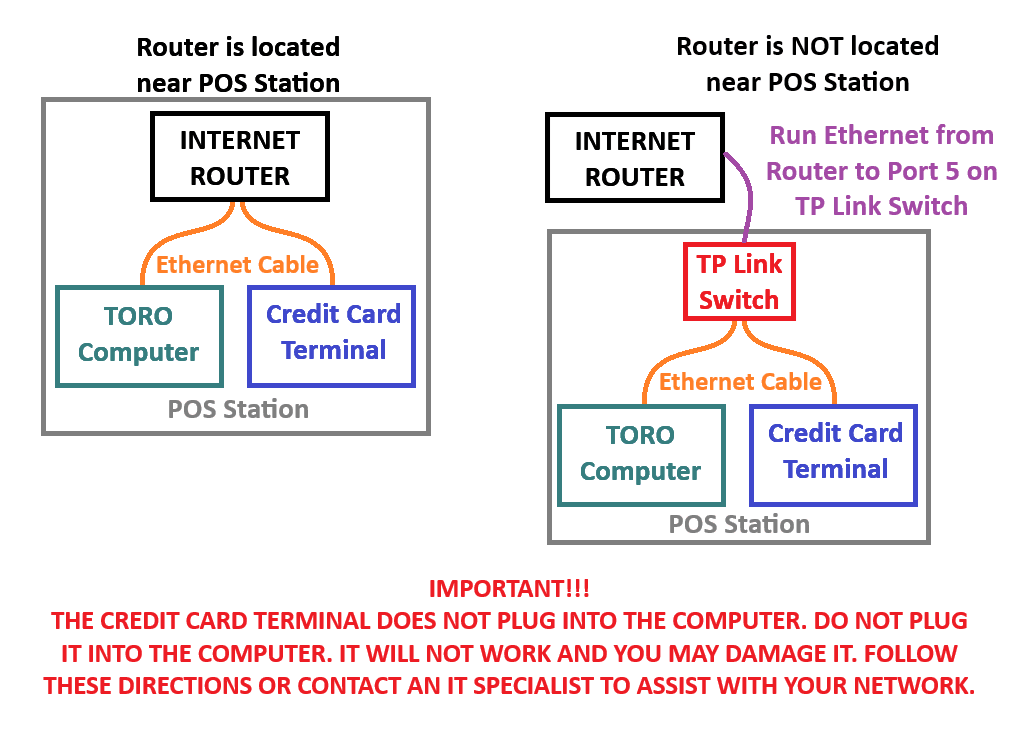
First, plug in the ethernet cord to your router/switch. This DOES NOT plug into the computer. It must go directly into your router/switch.
- If you don't have even ethernets at the POS station area, then just put the credit card terminal right at your router for this test. We can move it later on.
- You will need two ethernet ports at your POS station for when you go live. One for the computer and one for the credit card machine. If you only have one, then you will need a switch prior to going live. Here is a link: Netgear Switch.
Next plug in the power cable to the wall. If you plugged in the power first, then hold down the YELLOW & # keys for 5 seconds to reboot the terminal. Anytime the internet is reset or you unplug/plug the ethernet cable, it will need rebooted.
Here is a wiring diagram to help you out:
Setup your PayaConnect Account
- Navigate to hellasbae.payaconnect.com and sign in.
- If you haven't signed in before, then click the FORGOT PASSWORDbutton and input your email address on file. If you don't know which email you used, then go to your CC thread on WhatsApp and look for the long message that Mitch sent you. In there, search that thread for "Location Admin Username". Mitch sent it to you already. If you still can't find it, ask him in that thread.
Test a Transaction from PayaConnect
- Run a small test transaction directly from your PayaConnect dashboard to confirm the terminal is online and communicating with your merchant account before your integration call.
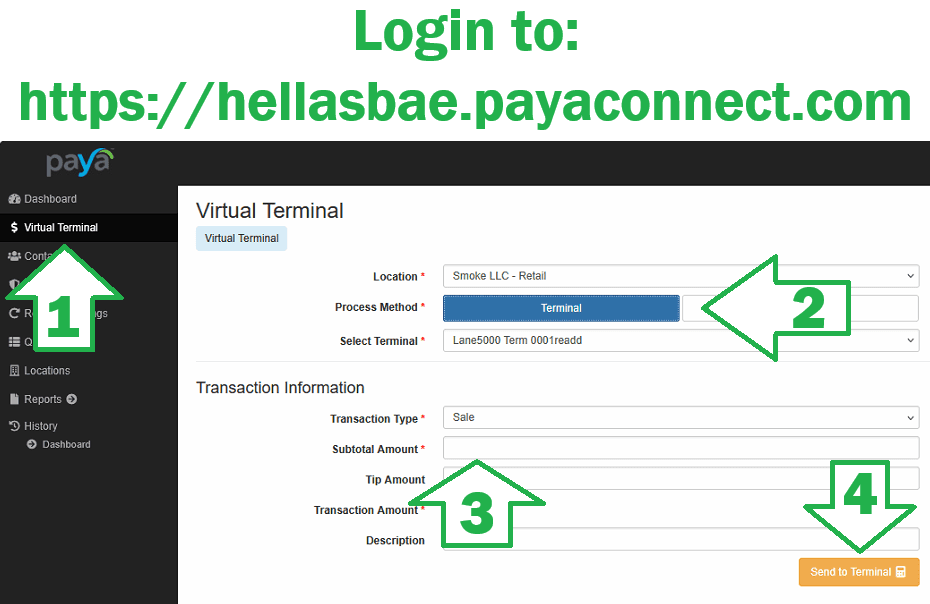
Log in to hellasbae.payaconnect.com and follow these four steps:
- 1
Click Virtual Terminal
In the black menu down the left side of PayaConnect, click Virtual Terminal.
- 2
Set Process Method to Terminal
Choose your Location, click the Process Method button until it reads Terminal, then pick your terminal under Select Terminal (for example "Lane5000 Term 0001").
- 3
Enter a small Subtotal Amount
Leave Transaction Type on Sale and type a small amount such as 1.00 in the Subtotal Amount box. Leave Tip and Description blank.
- 4
Click Send to Terminal
The amount should appear on the credit card terminal within a few seconds. Tap or insert a card to finish the sale, then void or refund it so the customer is not charged. If nothing shows up on the terminal, it is not talking to the internet yet.
Need just this part on its own? torocigarpos.com/cctest
Done with these steps?
Get on the calendar so we can finish the TORO-side integration with you.